Supabase (Postgres): real estate deals mart for Excel and API
Sometimes deal data already exists, but as a long, messy table where it is hard to answer basic questions quickly: how price changes month by month, which projects are growing, where outliers are, and how to compare 1BR vs 2BR.
In this project, the task was practical: clean up real estate deal data in Supabase (Postgres) so the client could export a ready mart into Excel and work with filters without constant developer support.
What had to be delivered
- Normalize table structure (projects, developers, transactions) and data types.
- Link projects and developers via keys.
- Prepare time analytics (year/month).
- Build price aggregates by project and room count.
- Speed up reporting queries with indexes.
- Expose ready datasets through Supabase API (input: p_id/d_id or "all").
1. Import of source data
Data was loaded into Supabase "as is": without schema pre-design, with mixed field types and unstable values (texts, dates, numbers, project names).
The client provided 2 Excel files and 1 CSV file (150 MB) with ~900.000 lines.
This made it possible to start immediately with real data and identify quality and structure issues on a live volume.
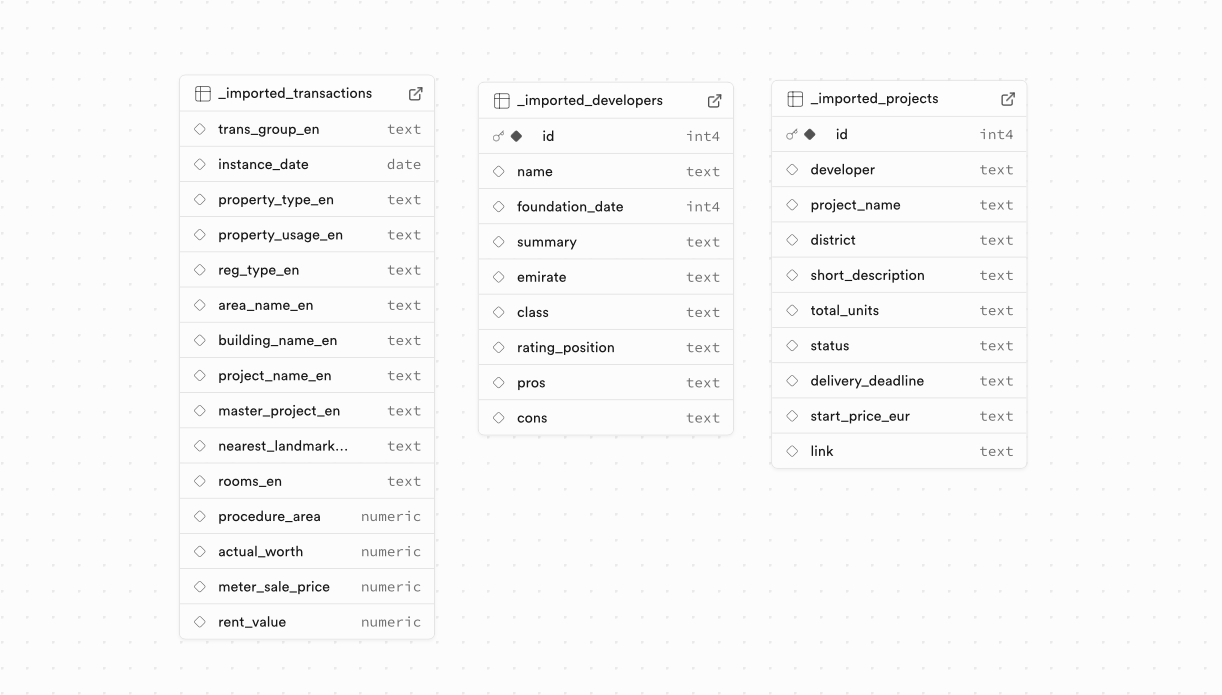
2. Careful normalization and schema cleanup
Then came careful work to bring the database into a stable shape:
- extracting reference entities (projects, developers) into separate tables,
- creating relations between entities via keys,
- converting column types (date, numeric instead of text),
- adding indexes for real reporting queries,
- enriching data (for example, normalizing room/bedroom values from text to numeric fields),
- adding dedicated p_year and p_month fields for time analytics.
Year and month were stored as separate fields to avoid EXTRACT(YEAR/MONTH) on every query and simplify grouping and sorting for Excel exports.
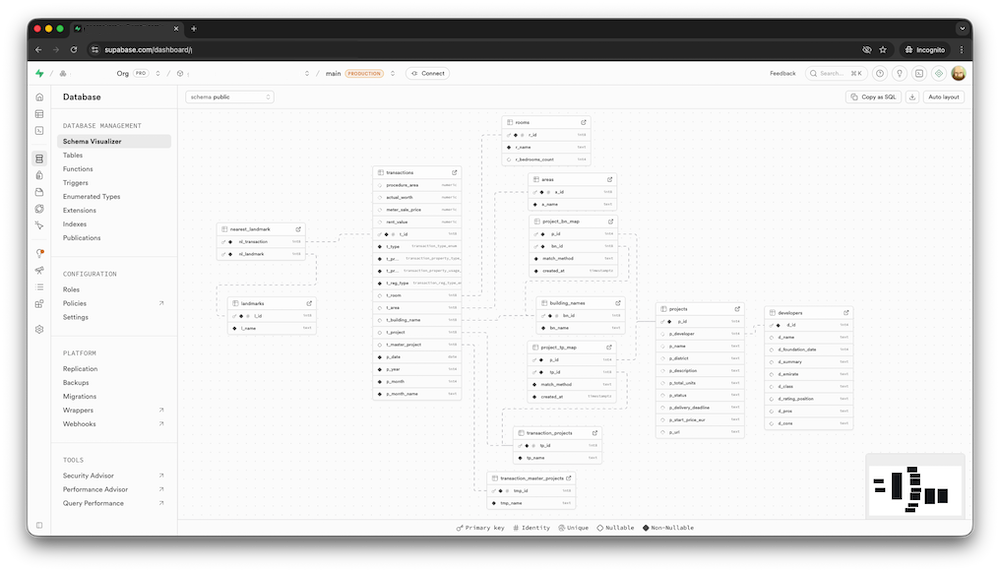
3. Preparing the database for external API
The structure and queries were aligned for external consumption: flat datasets, stable fields, predictable key-based filters (p_id, d_id, year, month). The external API itself was out of scope for this task, but the database and data marts are prepared for it.
Result
- After raw import, data occupied about 300 MB in Supabase; after normalization and adding new indexes, it dropped to 237 MB.
- Even with the new indexes, the database still fit within Supabase Free Tier limits.
- Analytics queries became noticeably faster due to indexes and precomputed time fields.
- The database became ready for scale: reports, external API, and BI tools.
Who this is for
- If data already exists but is hard to use without manual cleanup.
- If you need time-based analytics (month/year) and category comparisons.
- If the output should be business-ready: Excel/BI + API, not just SQL.
If you need a similar result: I clean up data tables, design analytics-ready schemas, build marts, and prepare API access.
Technical Details: how to upload a large local CSV to Supabase
Below is a practical flow for when the CSV file is large and stored locally on your machine.
1) Get the IPv4 connection string in Supabase
- Open your Supabase project: Project Settings -> Database -> Connection string.
- Select URI mode and the IPv4 option (Direct connection).
- Copy a string in this format:
postgresql://postgres.<project-ref>:<password>@<host>:5432/postgres?sslmode=require2) Run a Docker container with Postgres client and mount your CSV folder
docker run --rm -it \
  -v "$(pwd)":/work \
  postgres:16 \
  psql "postgresql://postgres.<project-ref>:<password>@<host>:5432/postgres?sslmode=require"
This is a single command: it opens psql immediately, and your current terminal folder is mounted into the container as /work.
3) Create the table in Supabase (before import)
Before import, just create the target table in Supabase (via SQL Editor or beforehand in the same psql session).
4) Import the CSV into the table
You are already inside Docker and connected to the DB in psql, so run this command directly:
\copy import.deals_raw
from '/work/deals.csv'
with (format csv, header true, delimiter ',', quote '"', null '');
null '' means empty CSV values are loaded as NULL. If your file uses the literal NULL text, use null 'NULL'.
5) Quick check
select count(*) as rows_loaded from import.deals_raw;
select * from import.deals_raw limit 5;
If the file is very large, load it in batches (chunks), then add indexes after import - this is usually faster and more stable.